
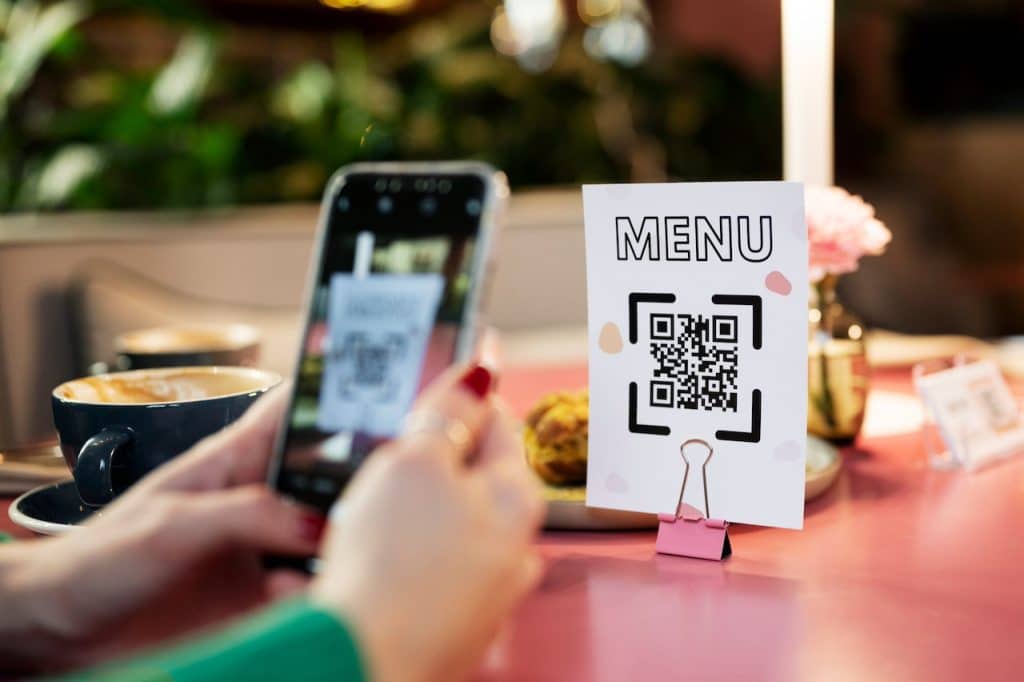
Creating a menu QR code is one of the easiest and most cost-effective ways to modernize your restaurant, café, or food business. It allows customers to instantly access your menu on their phones or online—no printing, no physical contact, and easy updates anytime.
Below is a complete, step-by-step guide that walks you through everything—from creating your digital menu to generating and optimizing your QR code for real-world use.
🍽️ What Is a Menu QR Code?
A menu QR code is a scannable code that directs customers to your digital menu. When scanned with a smartphone camera, it opens a webpage, PDF, or app where your menu is displayed.
🧾 Step 1: Create Your Digital Menu
Before generating a QR code, you need a digital version of your menu. There are several ways to do this depending on your budget and technical skills.
Option 1: PDF Menu (Simple & Fast)
- Use tools like:
- Canva
- Microsoft Word
- Google Docs
- Export your menu as a PDF
- Upload it online (Google Drive, Dropbox, or your website)
Option 2: Web-Based Menu (Best for Flexibility)
- Build a simple webpage or use:
- Wix
- Squarespace
- Easier to update anytime without reprinting QR codes
Option 3: POS-Integrated Menu (Best for Restaurants)
- Many POS systems offer digital menus:
- Slant POS
- Toast
- Automatically syncs pricing and availability
🔗 Step 2: Upload & Get Your Menu URL
Once your menu is ready:
- Upload it to a public platform
- Copy the shareable link (URL)
Examples:
- Google Drive → Set to “Anyone with the link”
- Your website → Copy the page URL
👉 This link is what your QR code will point to.
📱 Step 3: Generate Your QR Code
Now you’ll convert your menu link into a QR code.
Popular QR Code Generators:
- QR Code Generator
- QRStuff
- Canva (also generates QR codes)
How to Create It:
- Paste your menu URL
- Choose Static or Dynamic QR code
- Static = free, cannot edit later
- Dynamic = editable + track scans (recommended)
- Customize:
- Add logo
- Change colors
- Download (PNG or SVG)
🎨 Step 4: Design & Customize Your QR Code
A plain black-and-white QR code works—but a branded one performs better.
Design Tips:
- Add your restaurant logo
- Use your brand colors (but keep contrast high)
- Include a call-to-action:
- “Scan to View Menu”
- “Order Here”
- Test readability after customization
🖨️ Step 5: Print & Place Strategically
Where you place your QR code matters just as much as creating it.
Best Placement Areas:
- Table tents
- Wall posters
- Entrance doors
- Receipts
- Takeout packaging
Materials to Use:
- Laminated cards (durable)
- Stickers (tables or windows)
- Acrylic stands (professional look)
🧪 Step 6: Test Your QR Code
Before going live:
- Scan using multiple devices (iPhone & Android)
- Test different lighting conditions
- Check loading speed
- Ensure the menu displays correctly
⚙️ Step 7: Keep Your Menu Updated
This is where QR codes shine.
If You Used:
- PDF (static QR):
- You must re-upload and reprint if link changes
- Dynamic QR:
- Update the destination without changing the code
👉 Dynamic QR codes are ideal for:
- Daily specials
- Price updates
- Seasonal menus
📊 Bonus: Track Performance (Advanced)
With dynamic QR tools, you can track:
- Number of scans
- Time of day usage
- Device types
This helps you:
- Understand customer behavior
- Optimize menu layout
- Improve promotions
💡 Pro Tips for Restaurants & Cafés
1. Optimize for Mobile
- Use large fonts
- Keep menus simple
- Avoid heavy PDFs that load slowly
2. Add Ordering Capability
- Integrate with online ordering systems
- Increase revenue through upsells
3. Use Multiple QR Codes
- Different codes for:
- Menu
- Drinks
- Ordering
- Feedback
4. Include Photos
- High-quality food images increase sales
🚫 Common Mistakes to Avoid
- ❌ Using low-resolution QR codes (hard to scan)
- ❌ Linking to non-mobile-friendly menus
- ❌ Not testing before printing
- ❌ Poor placement (hidden or hard to reach)
- ❌ No instructions for customers
🧠 Example Workflow (Simple Setup)
- Create menu in Canva
- Export as PDF
- Upload to Google Drive
- Copy shareable link
- Generate QR code using QR Code Generator
- Print and place on tables
Done in under 30 minutes.
💰 Cost Breakdown
| Item | Cost |
|---|---|
| QR Code Generator | Free – $15/month |
| Menu Design | Free – $20 |
| Printing | $10 – $100 |
| Website (optional) | $10 – $30/month |
🚀 Final Thoughts
Menu QR codes are no longer just a trend—they’re a standard in modern dining. They reduce costs, improve hygiene, and give you complete control over your menu in real time.
Whether you run a small café or a full-service restaurant, implementing a QR code menu is one of the fastest upgrades you can make to improve customer experience and operational efficiency.


